
Install & authorize the MCP
Wire the DotCollab MCP server into your AI IDE so its tools are available to your agent.
When to use this: the first time you connect an IDE, or when adding DotCollab to a new machine. You only do this once per IDE.
Prerequisites: a DotCollab account and org, and an MCP-capable IDE (Cursor, Claude Code, Claude for VS Code, …).
Add the server to your MCP config
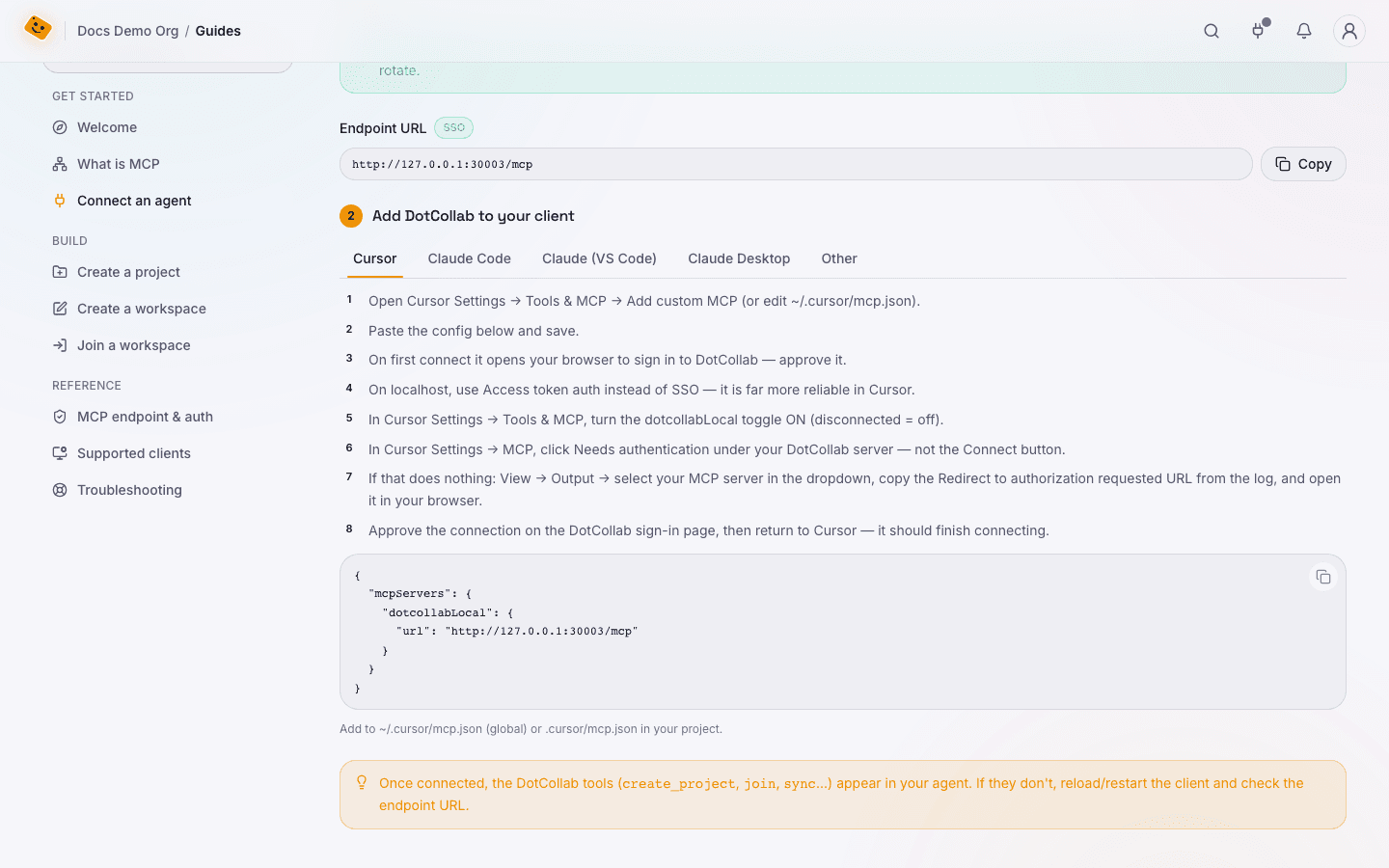
The hosted endpoint is https://mcp.dotcollab.ai. Pick your client:
Open Cursor Settings → Tools & MCP → Add custom MCP (or edit ~/.cursor/mcp.json /
the project's .cursor/mcp.json):
{
  "mcpServers": {
    "dotcollab": {
      "url": "https://mcp.dotcollab.ai"
    }
  }
}
Save and reload Cursor.
Run in your terminal (--scope user enables DotCollab in all your projects):
claude mcp add --transport http --scope user dotcollab https://mcp.dotcollab.aiFor one repo only, swap --scope user for --scope project or --scope local.
Add the dotcollab entry to the mcpServers object in ~/.claude.json (all projects)
or a .mcp.json at a repo root (one project):
{
  "mcpServers": {
    "dotcollab": {
      "type": "http",
      "url": "https://mcp.dotcollab.ai"
    }
  }
}
Reload the VS Code window.
Point any Streamable-HTTP / SSE MCP client at https://mcp.dotcollab.ai using the
same mcpServers shape as Cursor.
Authorize your account
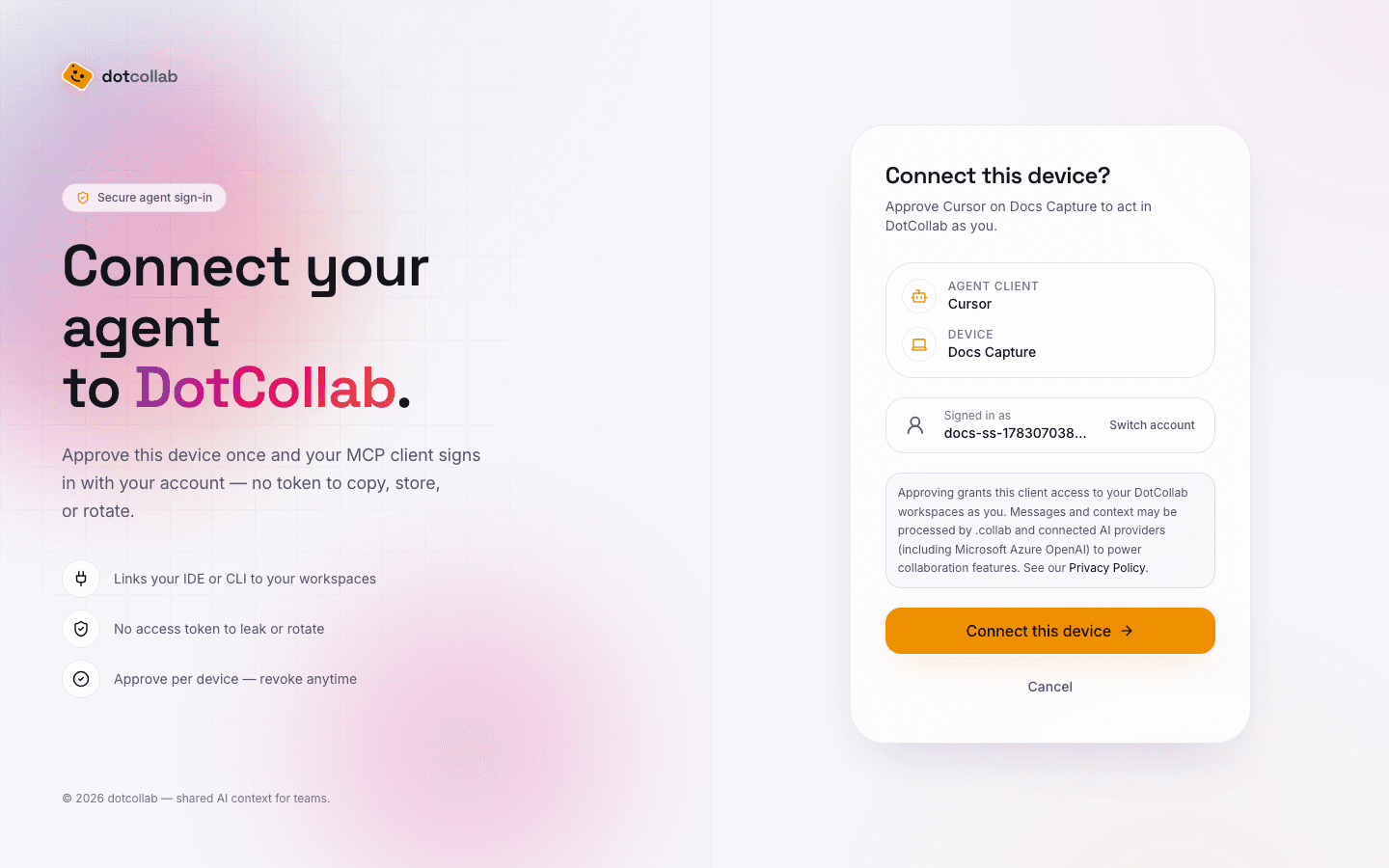
On first connect the MCP server opens your browser to sign in at workspace.dotcollab.ai and approve the connection. That links the IDE session to your DotCollab account so tools act as you in a workspace.
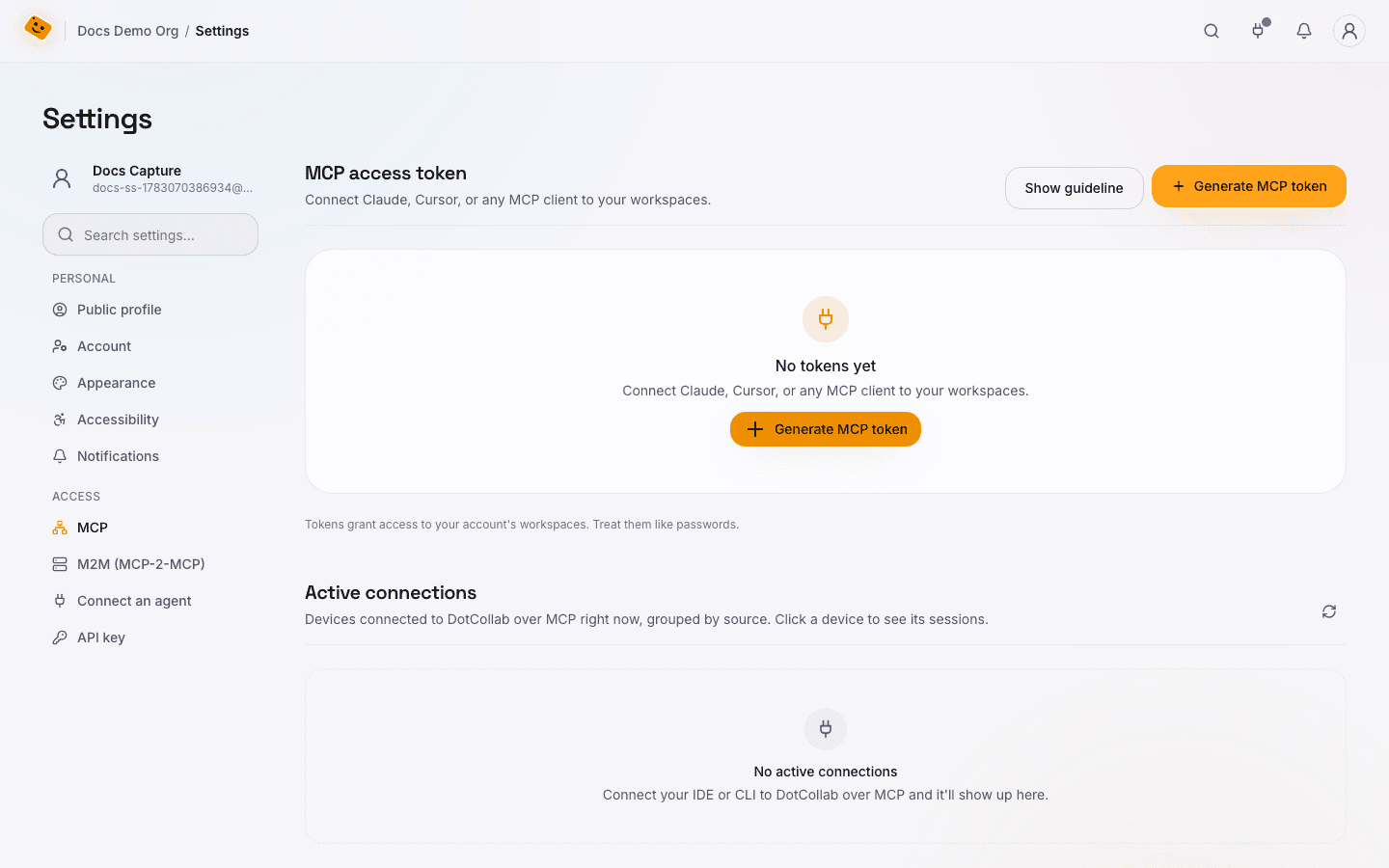
Token auth (alternative): generate a personal access token in the app and append
?accessToken=YOUR_TOKEN to the MCP URL. Useful when SSO does not auto-open in your
client (common in local dev).
Verify the tools are available
Reload the IDE and confirm the dotcollab toolset is listed — join, sync,
tunnel, update, and the rest.
Cursor + SSO: if authorization does not open automatically, go to Settings → MCP, click Needs authentication under your DotCollab server (not Connect), or copy the authorization URL from View → Output (select your MCP server) and open it manually.
Some clients load MCP tools lazily — if you don't see them, ask the agent to "join my DotCollab workspace" and the client will fetch the toolset on demand.
Result
The DotCollab tools are available in your IDE. Next: join a workspace and pick a role.